You install two drives in a NAS, enable RAID 1, and see that the storage pool is healthy. Your files are now mirrored, so it is tempting to assume they are backed up.
Then someone deletes a folder. Both drives reflect the deletion, and the RAID status still says everything is fine.
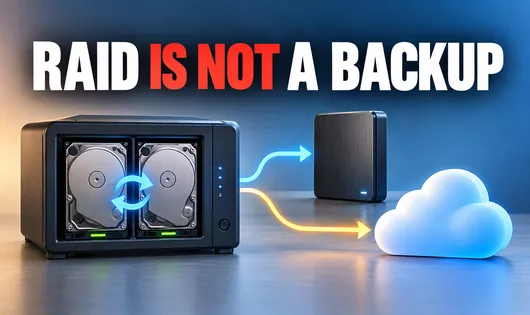
RAID is not a backup because it does not, by itself, preserve a separate recovery copy of your files. Redundant RAID levels help storage survive certain drive failures. A backup gives you a way to recover data when the original is lost, damaged, or changed.
Understanding that difference helps you decide what your NAS or server still needs, even when every drive is working perfectly.
RAID vs Backup: What’s the Difference?
RAID stands for Redundant Array of Independent Disks. It combines drives into an array, using techniques such as mirroring, striping, or parity depending on the RAID level.
For redundant levels, the main benefit is availability: your storage may remain accessible after a drive fails. RAID 0 is an important exception because it provides no drive-failure redundancy.
A backup is an additional copy you can restore from. Keeping older versions also lets you recover from changes you did not want, rather than restoring only the latest state.
| Question | RAID alone | Separate, versioned backup |
|---|---|---|
| Can it keep storage running after a drive failure? | Often, within the RAID level’s limits | Usually requires a restore or another system |
| Can it recover a deleted file? | No built-in file history | Yes, if a suitable backup remains |
| Can it restore an earlier file version? | No | Yes, within the retained history |
| Can it help if the whole NAS is stolen? | No | Yes, if the backup is elsewhere |
| Can it help after ransomware? | RAID itself cannot undo encryption | Potentially, if a clean backup survives |
These are different jobs. A server can need RAID to reduce downtime and backups to recover its data.
What Does RAID Protect Against?
Redundant RAID levels are designed to tolerate specified member-drive failures. The protection depends on the layout and the condition of the remaining drives.
| RAID level | Drive-failure tolerance |
|---|---|
| RAID 0 | None; losing one member can make the array unusable |
| RAID 1 with two drives | One drive |
| RAID 5 | One drive |
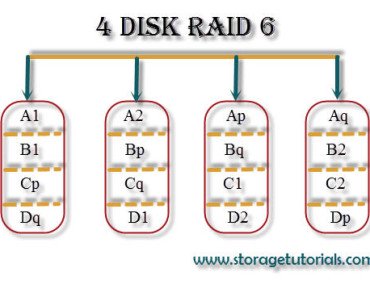
| RAID 6 | Any two drives |
| RAID 10 | One drive in each mirror pair; losing both drives in the same pair can lose the array |
This makes RAID useful for shared folders, virtual machines, and applications that need storage to remain available while a failed drive is replaced. Performance may change while the array is degraded or rebuilding.
Sandisk’s RAID documentation describes drive-failure protection by level and explicitly distinguishes it from backup protection.
For help choosing a layout, read our RAID 5 vs RAID 10 comparison. Whichever level you choose, plan the backup separately.
Why RAID Is Not a Backup: Five Common Data-Loss Scenarios
1. Accidental deletion or overwriting
RAID works below the level of deciding whether a file change was a good idea. Deleting the wrong folder or saving over a spreadsheet is a valid write operation as far as the array is concerned.
A mirror updates to reflect the change. A parity-based array updates its data and parity. Neither automatically keeps yesterday’s folder for you.
A recycle bin or snapshot may help, but that recovery comes from an additional feature, not from RAID itself.
2. Ransomware and malicious changes
If ransomware has permission to modify files on a mounted share, RAID does not stop those modifications. All drives can remain healthy while the files become unreadable.
Backups need protection too. A permanently connected backup destination may be reachable using compromised credentials. CISA’s StopRansomware Guide recommends offline, encrypted backups and regular recovery testing.
An offline copy or appropriately configured immutable backup adds protection beyond redundancy. Immutability prevents changes or deletion during a defined retention period; its scope and access controls depend on the system.
3. Application errors and file corruption
An application can save an incomplete document or write incorrect data. RAID cannot determine what the application intended to save, so redundant storage can faithfully retain the wrong result.
Some storage stacks use checksums, scrubbing, and redundancy to detect or repair certain forms of on-disk corruption. Those features still cannot reconstruct the correct content of a document that an application has legitimately overwritten. That is where retained backup versions help.
4. Failure of the whole device or location
The drives in an array often share an enclosure, power supply, controller, and physical location.
A failed enclosure may interrupt access without destroying the data, but recovery may require repairs or compatible hardware. Theft, fire, or flooding can remove the entire system and every member drive together.
A USB backup beside the NAS can be useful for local recovery, but it shares the risk of losing that location. An off-site copy addresses that gap.
5. Failures beyond the array’s tolerance
RAID has limits. A RAID 5 array cannot tolerate a second complete member-drive failure while already missing one drive. RAID 10’s tolerance depends on which mirror members fail.
Rebuilding restores redundancy after a replacement, but it does not recover deleted files or create an independent recovery point. Rebuild duration and outcome depend on drive condition, array size, workload, and implementation.
Keep a working backup before a failure happens, rather than treating a successful rebuild as the recovery plan.
A Simple RAID 1 Example
Imagine a two-bay NAS containing two 4 TB drives configured as RAID 1. It has roughly 4 TB of usable capacity before formatting and system overhead, rather than 8 TB.
The NAS stores your only copy of family photos.
- One drive fails: the surviving mirror can keep the photos accessible while you replace the failed drive.
- You delete a photo folder: the deletion affects the mirrored filesystem. RAID alone cannot restore it.
- The NAS is stolen: both drives and the only copy of the photos are gone.
Now add versioned backups to a separate external drive and an off-site destination. You have recovery options for events that mirroring cannot fix, provided those backups completed successfully and retain the files you need.
Two mirrored drives represent one live dataset, not two independent backups.
Can a RAID NAS Be Used for Backups?
Yes. A NAS using RAID can be a backup destination. The important distinction is between the storage technology and the role of the data stored on it.
If your working files remain on a laptop and backup software creates another recoverable copy on a NAS, that NAS copy is a backup. RAID can make the backup destination more resilient to a member-drive failure.
If you move the files to the NAS and delete them from the laptop, the NAS now holds the only copy. Mirroring those files inside the NAS does not change that.
Seagate’s backup guidance makes the same distinction: a RAID system can hold a copy within a backup plan, but does not constitute the complete plan by itself.
Are Snapshots and Cloud Sync Enough?
Snapshots help with quick recovery
A snapshot preserves a point-in-time view of data. Depending on the system, you may be able to retrieve a deleted file or roll back unwanted changes quickly.
However, local snapshots generally depend on the storage holding them. Losing the pool or entire NAS can also lose those recovery points. Synology’s NAS backup guidance recommends another destination even when local versions are available.
Replicated snapshots on a separate system can be part of a backup strategy. Check whether retained copies survive deletion of the source, loss of the source system, and compromise of its administrator account.
Sync needs recoverable history
Cloud sync keeps locations up to date. Depending on its settings, it can also propagate unwanted changes and deletions.
Some services offer version history and deleted-file recovery. Check how long that history lasts, what it covers, and whether you can recover after losing access to the original account. A cloud icon alone does not confirm that the recovery you need is available.
How to Back Up a RAID Array
1. Decide what you need to recover
List the data you cannot easily replace: photos, documents, business records, project files, databases, and relevant configuration.
Backing up shared folders may be enough for a home photo library. A business application may also need database-aware backups, configuration, and recovery instructions. A successful file copy of a running database is not automatically an application-consistent backup.
2. Keep copies outside the array
The traditional 3-2-1 backup rule calls for:
- 3 copies of important data, including the working copy.
- 2 different media types.
- 1 copy off-site.
The practical goal is to avoid having every copy fail in the same event. Separate devices and locations matter; different folders or partitions inside one array do not provide that separation.
For example, keep working files on the NAS, a versioned local backup on a separate external drive, and an encrypted backup with an off-site service. This illustrates local and off-site separation; the media types involved depend on your chosen destinations.
3. Schedule backups and retain versions
Choose frequency by asking how much recent work you could afford to lose. A nightly backup can leave nearly a day’s changes unprotected. Frequently changing business data may need a shorter interval.
Retention answers a different question: how far back might you need to go? Keeping only the latest backup may be insufficient when you discover a damaged file weeks later.
Our guide to incremental and differential backups explains how backup methods affect what gets copied and what is needed for restoration.
4. Protect backup access
Use separate backup credentials where supported, limit access to the destination, and protect the backup account with multi-factor authentication when available. Keep encryption recovery keys somewhere you can reach if the original NAS fails.
For a removable offline copy, safely eject and disconnect the drive after the backup finishes. Another option is a destination with correctly configured immutability. These controls address different risks and can be combined.
5. Test a restore
A completed backup job is useful evidence, but a restore shows whether the data is recoverable.
Restore a sample folder to a separate location and open the files. Check permissions and timestamps where they matter. For business applications, test recovery in an isolated environment and confirm the application starts with the expected data.
Record the steps and time required. Repeat after major storage or backup changes, and on a schedule that fits the importance of the data.
Frequently Asked Questions
Is RAID 1 a backup?
No. RAID 1 mirrors the current data across drives. It can tolerate specified drive failures, but does not inherently preserve independent file history or protect against loss of the entire device.
Is RAID 5 or RAID 6 enough without a backup?
No. Parity increases drive-failure tolerance, but cannot undo accidental deletion, an unwanted overwrite, or ransomware changes. You still need recoverable copies elsewhere.
Do I need RAID if I already have backups?
It depends on how much downtime you can accept. Backups support recovery, while redundant RAID can reduce interruption after a member-drive failure. Some home users can accept restoring to a replacement drive; a busy shared server may need both.
Can I back up to another RAID array?
Yes. Use a separate destination with suitable backup history and access controls. If both arrays share one device or location, add protection for failures that could affect both.
What should I set up first if my budget is limited?
If irreplaceable files have only one copy, create a separate backup first. Add redundancy according to your uptime needs, then improve the backup plan with versioning, off-site storage, and restore testing.
Give Your Files a Recovery Path
RAID remains useful, but a healthy array does not prove your files are recoverable. Check where you would restore from if a folder disappeared today or the whole NAS became unavailable.
Start with one important folder: back it up outside the array, restore it to another location, and open the files. That small test tells you more about your recovery plan than a green drive-status screen.